 FaithSow
Story text too small? Adjust FaithSow's reading subtitles
When you and your child share a screen, the story illustration may be easy to see while the words beside it feel too small. Before changing the whole browser's zoom, check the story reader's subtitle settings. The purpose is specific: make the story text easier for you to follow at your chosen reading distance, without treating this as a change to every menu in FaithSow.
This guide concerns the FaithSow web app at app.faithsow.com. Its controls must not be assumed to match the separate public website reader or every installed iPhone and Android version. It is a family-reading adjustment, not a classroom setup or a claim about eyesight, reading ability or medical benefit.
Start inside the story, not in general appearance settings
Open a story available to you and enter its reading screen. The Creation story shown here is labelled free. That label applies to this story, not the whole library, every edition or every feature; other content may require paid access.
The control you need belongs to the reader. Open the reader's settings menu, then choose Subtitle Settings. Do not confuse the separate subtitle-visibility control with the settings panel. This is different from a general appearance setting, the story-volume control or the choice between reading modes. If the reading tools are hidden, bring them into view before looking for the control.
Opening a reading session is not a view-only preview: reading can update progress, and changing a setting can save a preference. Use a story you intend to read rather than assuming these steps leave no trace.
Choose a larger font, then return to the same passage
Open the subtitle settings and locate the font-size choices. Under Font Size, the observed English panel offers X-Small, Small, Medium, Large and X-Large. Choose a larger size than the one currently selected; you do not have to begin with the largest option.
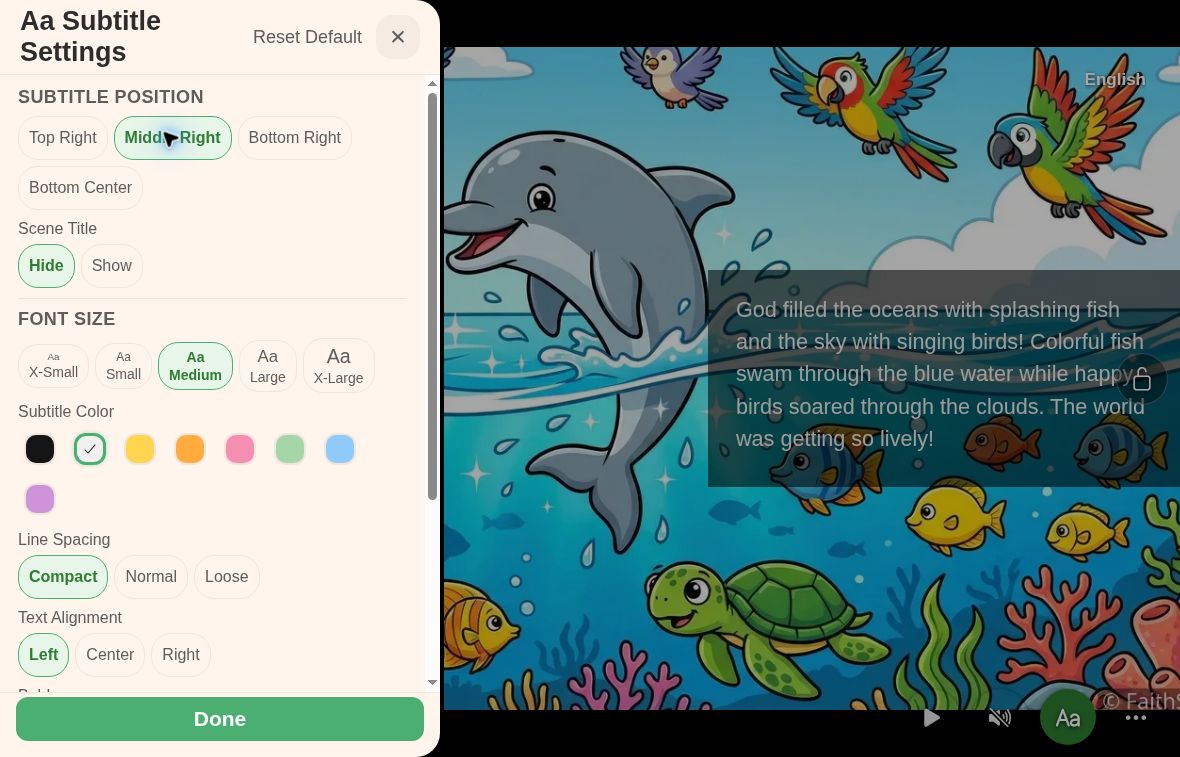
Select Done to leave the panel, then look at the actual story passage. Can both of you comfortably follow the text from where you are sitting? Is the passage still fully visible? The reading screen, not just the selected button, is the useful result to check. Check the final line as well as the first. A larger font may take more space, so compare the real text rather than assuming the largest setting will suit every passage or screen. If text runs beyond the edge, step down a size and check the same passage again.
If the bottom line is clipped, try Middle Right
If a larger subtitle size hides the last line at Bottom Center, do not keep that setting without checking the whole passage. Try Middle Right on the same page, then check the words and illustration. Moving the subtitles is a workaround for that passage, not a fix for Bottom Center.

To try that option, note your original Subtitle Position and Font Size. Keep the same story page and font size, reopen Subtitle Settings, and select Middle Right under Subtitle Position. Select Done, then check the whole passage, including its last line. Keep the other subtitle choices unchanged so you can judge this one adjustment.
In the images, the same passage at Medium is cut off at Bottom Center but visible through its last line at Middle Right. Check every line on your own page before keeping that position; a longer passage or a different screen may fit differently.
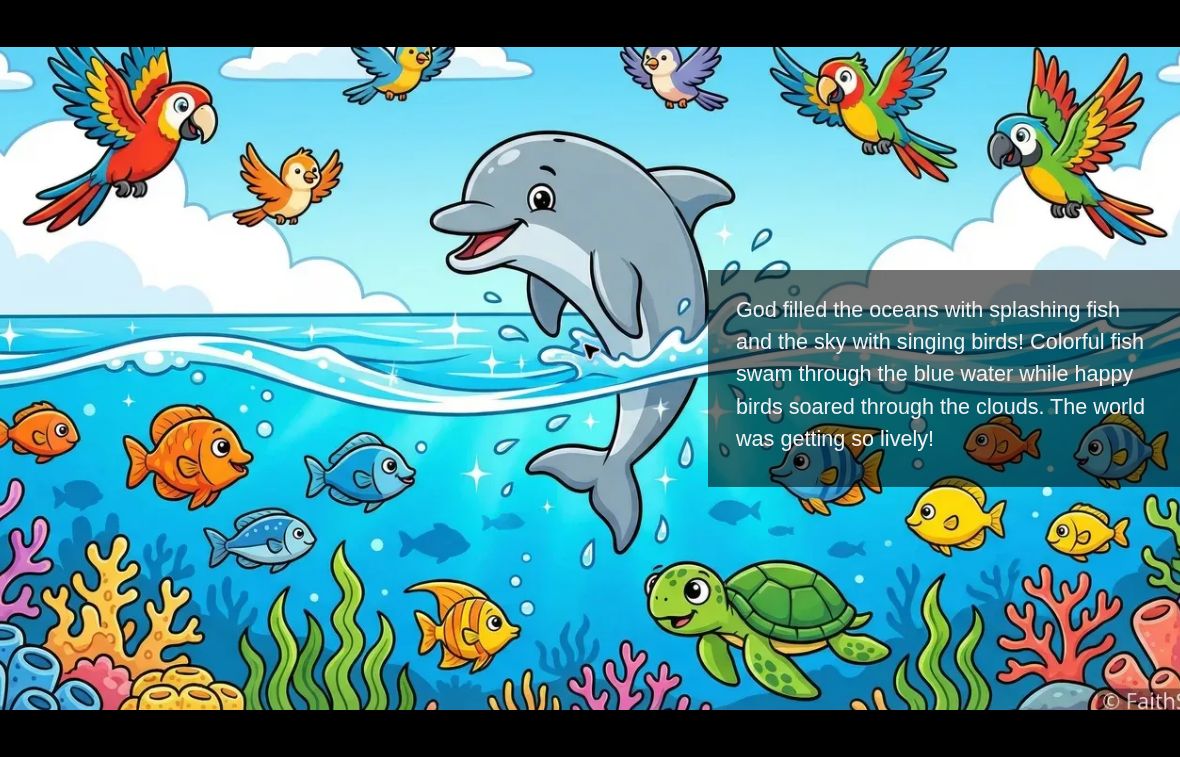
Side placement also covers part of the illustration. Check both the words and the picture before keeping it. If the passage is still cut off or the position does not suit your shared reading, choose a smaller font or restore your original position and size.
Restore your own settings if the change does not suit you
Reopen Subtitle Settings and select the position and size you noted before the change. Bottom Center and X-Small are values shown in this example, not settings every family must use.
Selecting your previous options is more precise than using Reset Default when you want to preserve other subtitle preferences. Do not assume a general reset restores your own earlier combination.
Return to the story and check the whole passage after restoring your settings. If you switch language, account, browser or device, check the setting there too. The practical sequence is to change one option, check the last line, and keep or restore it after looking at the result.
This is not browser zoom
Browser zoom changes the page's overall scale. The setting described here is the reader's subtitle font size. It is not an instruction to enlarge the entire interface, change the illustration resolution or modify your device's display settings.
It also does not change the story's wording or make a different reading mode necessary. If your immediate problem is following the words during shared reading, begin with the text-size choice rather than changing several unrelated controls.
If you cannot find the panel, check that you are in the web app's actual story-reading screen, not a library card, story-detail page or the separate public website reader. Controls may differ between versions. Do not assume the setting is unavailable everywhere simply because it is absent from one surface.
Try it with a story you can access
Already reading in the FaithSow web app? Open the reader's subtitle settings, note the current size, choose a larger option and check the resulting passage together. If the bottom line is clipped, try Middle Right at the same size and check the whole passage again; restore your original choices if it does not fit.
New to FaithSow? Visit the English FaithSow website to review the product and its download options. This link opens the website, not the subtitle settings. Choose the appropriate platform and review its current availability and terms before installing; this web guide does not certify the same controls on all native releases.
FaithSow uses AI-assisted story content and illustrations. Preview the story and check its Bible source before sharing it with your child. Free and paid content coexist, and availability can vary. The goal here is a manageable shared-reading adjustment: change one text setting, inspect the result, and keep or restore the size that suits your session.