 FaithSow
How to Adjust Story Volume in FaithSow for Family Reading
One volume control, one small change
Want to adjust the story volume while reading with your child? In FaithSow, find STORY VOLUME in Bedtime Settings, note its current position, and move the handle a little left. If you prefer the original setting, move it back. Here is how to find the right slider without changing the background-sound controls.
Where to find the story-volume slider
In FaithSow's web reader, choose Bedtime Mode on a story's detail page, then use the moon-shaped control to open Bedtime Settings. Scroll inside the panel until STORY VOLUME appears. The images below focus on that settings panel.
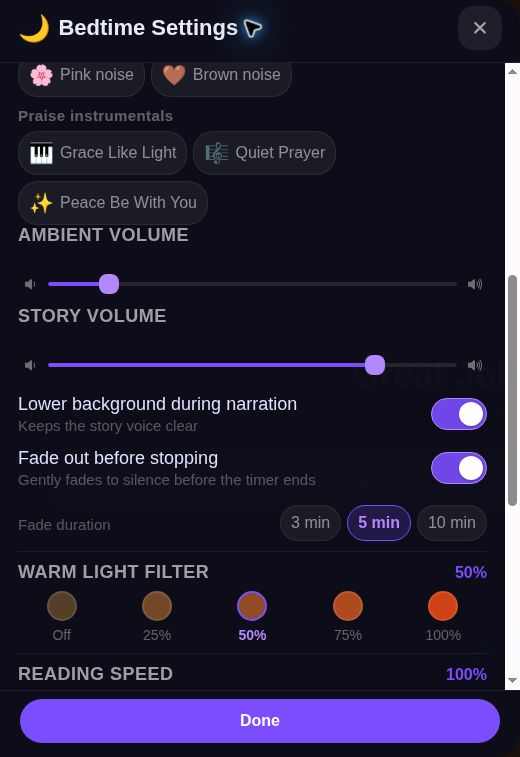
Look for the label, not a fixed percentage: STORY VOLUME is below AMBIENT VOLUME, with speaker icons at the ends of its track. Its purple handle shows the current position. A percentage can appear while you drag, but this row has no permanent numeric readout.
1. Read the current position before adjusting
Before changing anything, notice where the STORY VOLUME handle sits between the ends of its track. In this example it starts toward the right. Your own starting position may differ. Remember it so you can undo the adjustment.
2. Move the story-volume handle left and observe
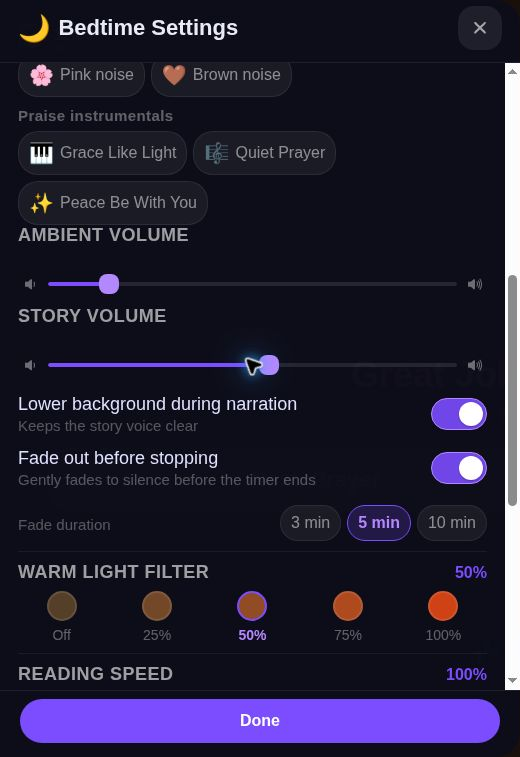
Drag the STORY VOLUME handle a short distance left. Check that this handle moved, rather than the AMBIENT VOLUME handle above it. In the second image, the story slider is farther left and the ambient slider stays in place. There is no need to match the example exactly.
3. Restore the position if you want to undo the change
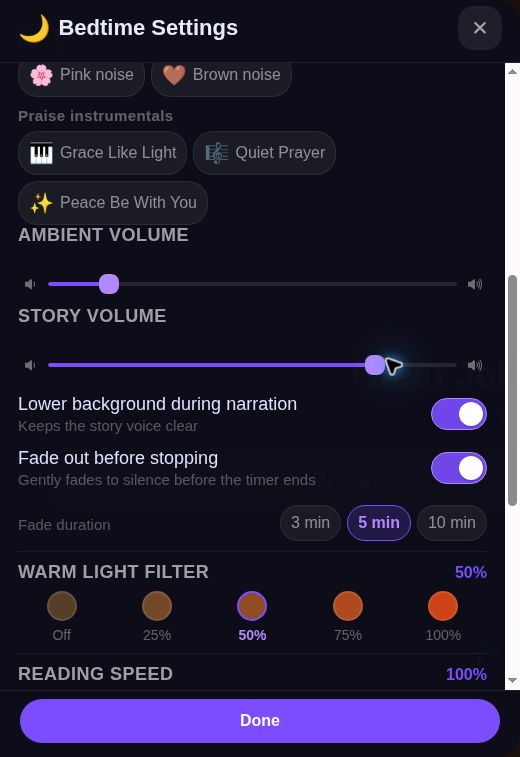
To undo the adjustment, drag the same handle back to the position you noted. Compare the first and third screenshots: the story-volume handle has returned to its starting point. Use your own original position as the reference, not a fixed percentage from a tutorial.
Story volume is not the same as background-sound volume
STORY VOLUME and AMBIENT VOLUME are separate controls. Choose the story slider for the story-volume setting; the ambient slider is the separate background-sound control. Keep the other slider unchanged while you learn this one.
Lower background during narration and Fade out before stopping are different switches below the sliders. You do not need to change them to follow these steps. This is a story-volume adjustment, not a background-sound selection or a separate listening-player tutorial.
Common questions
Which percentage should I use? This guide does not prescribe one. The story slider can show a percentage while you drag, but the example images do not display one. Use your own starting position and check the sound rather than copying a number from another setting.
I only see background-sound choices. Where is the slider? Continue scrolling inside Bedtime Settings until you reach the labeled volume rows.
What if I moved the wrong slider? Stop and check the row label. Restore that control only if you know its starting position; then locate STORY VOLUME before trying again.
Read the settings-panel images
The images focus on the Story Volume slider: it starts at one position, moves left, and returns. The enlarged images help you find the control and compare its positions. A slider position does not tell you how loud audio will sound on your device; check by listening before keeping a change.
Try a reversible adjustment during family reading
Open FaithSow and find STORY VOLUME through the bedtime settings entry above. Note the position, make one small leftward adjustment, then decide whether to keep it or restore the starting point. Leave the other settings alone while you get familiar with this control.